
Secure WordPress Website Workflow: 2026 Guide
A secure WordPress website workflow is a structured, repeatable system that protects your site from vulnerabilities at every stage, from initial setup through ongoing maintenance. WordPress powers 42.5% of all websites as of 2026, making it the most attacked CMS platform on the internet. That scale means automated bots probe WordPress installs around the clock. A reactive approach to security, patching things after an incident, leaves your site exposed for days or weeks at a time. The workflow described here combines access controls, hardening techniques, zero trust principles, and monitoring tools into one coherent system you can follow consistently.
What does a secure WordPress website workflow require?
A secure WordPress website workflow requires the right tools, a defined process, and consistent execution across three environments: development, staging, and production. Most site owners skip the process part. They install a security plugin and call it done. That is not a workflow. That is a single layer of defense with no backup plan.
Most WordPress security incidents trace back to third-party plugins, misconfigured environments, or stolen credentials, not core WordPress vulnerabilities. That finding changes how you should think about security. Your biggest risks are not in WordPress itself. They are in the extensions you add and the access you grant.

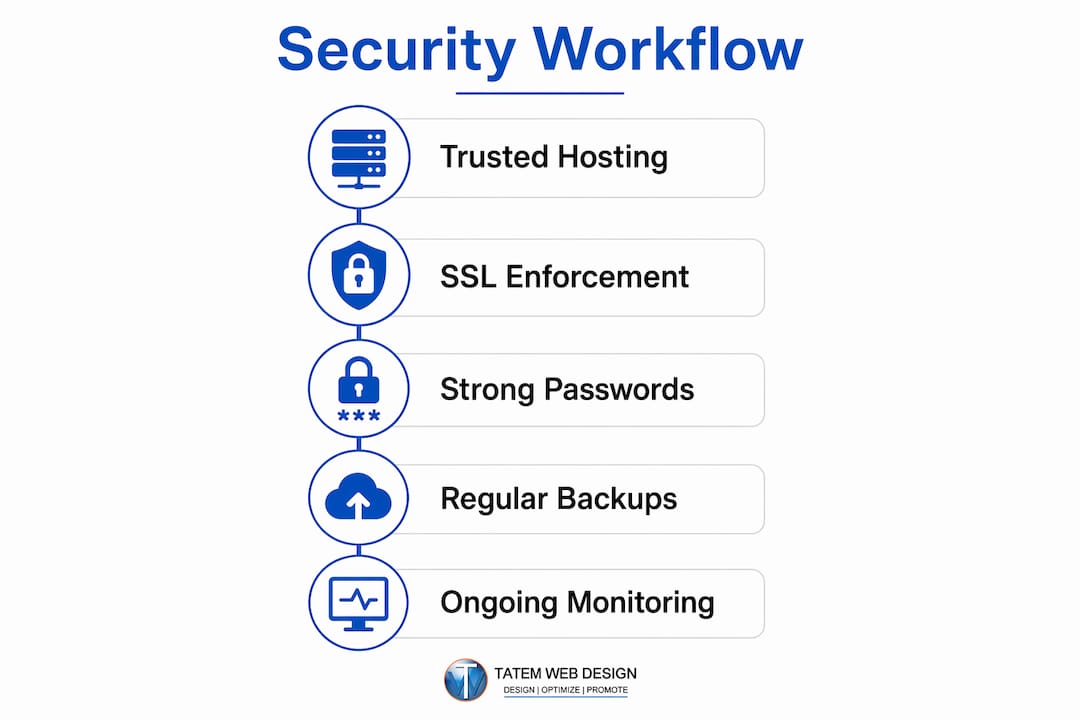
The foundation of any solid WordPress security workflow rests on five pillars: trusted hosting, SSL enforcement, strong authentication, a vetted plugin strategy, and a backup and monitoring system. Each pillar addresses a different attack surface. Skipping one creates a gap that attackers will find.
What tools and components does a secure WordPress setup need?
Hosting and SSL
Your hosting environment is the first line of defense. Managed WordPress hosts like WP Engine, Kinsta, and Cloudways provide server-level firewalls, automatic malware scanning, and isolated PHP environments. Shared hosting with no isolation means one compromised site on the server can affect yours. SSL certificates, enforced via HTTPS redirects in your .htaccess or Nginx config, encrypt data in transit and are now a baseline requirement for any site handling user data.
Security plugins worth using
The best plugins for WordPress security cover firewall rules, malware scanning, login protection, and activity logging in one package. Wordfence Security, Sucuri Security, and iThemes Security Pro are the three most widely deployed options in 2026. Each takes a different approach.
| Plugin | Primary Strength | Best For |
|---|---|---|
| Wordfence Security | Real-time firewall and malware scanner | Sites needing deep file scanning |
| Sucuri Security | Cloud-based WAF and CDN protection | High-traffic or e-commerce sites |
| iThemes Security Pro | Login hardening and user action logs | Agencies managing multiple sites |
| Jetpack Security | Backup, scan, and activity log bundle | Small business owners wanting simplicity |
Pro Tip: Never run two full-featured security plugins simultaneously. Wordfence and Sucuri together will conflict on firewall rules and slow your site noticeably.
Authentication and access tools
Two-factor authentication (2FA) is non-negotiable for any account with editor-level access or above. Tools like Google Authenticator, Authy, and the WP 2FA plugin by MiniOrange add a time-based one-time password (TOTP) layer that stops credential-stuffing attacks cold. Pair 2FA with a password manager like 1Password or Bitwarden so every team member uses a unique, strong password for their individual account.
Backup and monitoring solutions
| Tool | Backup Storage | Monitoring Feature |
|---|---|---|
| UpdraftPlus | Google Drive, S3, Dropbox | Scheduled backups only |
| BlogVault | Offsite BlogVault servers | Real-time malware scanning |
| ManageWP | Amazon S3 | Uptime and performance monitoring |
| WP Umbrella | External cloud storage | Activity logs and alerts |
How do you harden WordPress and control access step by step?
Hardening WordPress means reducing the number of ways an attacker can get in. Each step below removes a specific attack vector. Work through them in order on a staging environment first, then apply to production.
-
Move wp-config.php above the web root. Moving wp-config.php above the web root blocks direct HTTP requests to your most sensitive configuration file. WordPress automatically looks one directory up for this file, so the site keeps working without any code changes.
-
Lock down .htaccess. Add rules to block direct access to wp-config.php, xmlrpc.php, and the wp-includes directory. These three files are the most commonly targeted entry points in automated WordPress attacks.
-
Disable file editing in the dashboard. Add
define('DISALLOW_FILE_MODS', true);to wp-config.php. This single line prevents any user, including a compromised admin account, from editing plugin or theme files through the WordPress dashboard. -
Limit login attempts and enable 2FA. Limiting login attempts combined with 2FA drastically reduces brute-force attack success rates. Use Limit Login Attempts Reloaded or your security plugin’s built-in rate limiting alongside a TOTP-based 2FA solution.
-
Assign individual accounts per user. Remove shared admin credentials entirely. Every person who touches the site gets their own account with the minimum role required for their job. An editor does not need administrator access. A contractor reviewing content does not need plugin management rights.
-
Restrict or block xmlrpc.php. Restricting xmlrpc.php blocks a common brute-force amplification vector that lets attackers test thousands of passwords in a single HTTP request. If you use Jetpack or the WordPress mobile app, use IP allowlisting instead of a full block.
-
Audit and remove unused plugins and themes. Every inactive plugin is a potential entry point. Delete anything you are not actively using. Check remaining plugins against the WordPress Vulnerability Database at WPScan to confirm no known CVEs are unpatched.
-
Apply the least privilege principle to file permissions. Directories should be set to 755 and files to 644. The wp-config.php file should be 600 or 640. Anything more permissive than these settings gives attackers unnecessary write access.
Pro Tip: Add your server’s IP address to an allowlist for wp-admin access using your Nginx or Apache config. This blocks every login attempt from outside your known IP range before WordPress even loads.
| Hardening Measure | Attack Vector Blocked |
|---|---|
| Move wp-config.php | Direct file exposure via HTTP |
| Disable DISALLOW_FILE_MODS | Dashboard-based malicious file writes |
| Restrict xmlrpc.php | Brute-force amplification attacks |
| Limit login attempts plus 2FA | Credential stuffing and brute force |
| Remove unused plugins | Unpatched third-party vulnerabilities |
What is the best update, backup, and monitoring workflow?
Ongoing WordPress security monitoring and maintenance is where most site owners fall short. They set up the initial hardening and then let months pass without a structured review. Attackers count on that gap.
The gold standard for updates is a three-stage workflow: develop, test in staging, then deploy to production. Testing updates in staging before production prevents compatibility breaks from taking your live site offline. A broken WooCommerce checkout or a white screen of death on a medical practice website costs real money and real trust.
Here is the recommended update and backup workflow:
-
Pull a full backup before any update. Store it offsite. Regular backups to a secure, offsite location are the only reliable recovery path after a compromise or a failed update.
-
Apply updates to your development environment first. Test all plugin, theme, and core updates against your actual site content and configuration.
-
Push to staging and run a full functional test. Check forms, checkout flows, login pages, and any custom functionality. Give it 24 hours if the update is a major version change.
-
Deploy to production using WP-CLI. Disabling write access on production and running updates via WP-CLI under a separate deployment account is the gold standard for high-security environments. This prevents a compromised admin account from writing malicious files through the dashboard.
-
Verify and monitor post-deployment. Check your activity log, run a malware scan, and confirm uptime monitoring shows no errors.
For monitoring, automated monitoring of login activity, file changes, and malware scans is the fastest way to catch a compromise before it spreads. Tools like Sucuri SiteCheck, Wordfence’s scan scheduler, and ManageWP’s monitoring dashboard send alerts the moment something changes unexpectedly. Set up email or SMS alerts for failed login spikes, new admin account creation, and core file modifications.
Your wordpress maintenance checklist should include a monthly security audit: review user accounts, check plugin update logs, confirm backup integrity, and run a full malware scan. Document every action. If something goes wrong, that log is your forensic trail.
How do zero trust principles strengthen your WordPress workflow?
Zero trust architecture is defined as a security model that grants no implicit trust to any user, device, plugin, or network connection, regardless of whether it originates inside or outside your infrastructure. Zero trust enforces strict validation for every access request, eliminating the assumption that anything inside your network is safe.
For WordPress site managers and agencies handling multiple client sites, zero trust translates into concrete operational rules:
- No shared passwords, ever. Every team member, contractor, and client gets individual credentials. Shared passwords mean one compromised person exposes every site they touch.
- MFA on every privileged account. Enforcing MFA for all accounts with editing privileges significantly reduces the risk of account takeover and lateral movement across your WordPress installs.
- Separate PHP pools per site. On shared or VPS hosting, isolating each site in its own PHP-FPM pool means a compromised site cannot read files from adjacent sites on the same server.
- Periodic access reviews. Quarterly, audit every user account on every site. Remove accounts for former employees, past contractors, and clients who no longer need access.
- Restrict admin area access by IP. Where your team works from known IP addresses, restrict wp-admin to those addresses at the server level. This stops automated attacks before they reach the login form.
- Treat backups as sensitive assets. Encrypt backup files and store them in access-controlled locations. An attacker with your backup file has a copy of your entire database, including user credentials.
Proactive hardening and isolation of sites on shared hosting environments contain the threat blast radius effectively, limiting damage when one site is compromised. WordPress Hardening Guide
Pro Tip: For agencies managing 10 or more WordPress sites, use ManageWP or MainWP to centralize user management, update scheduling, and security scanning. Centralized visibility is the only way to enforce zero trust policies at scale without burning out your team.
Implementing zero trust requires a culture shift. It means moving from “we trust our team” to “we verify every action.” That shift feels uncomfortable at first. Over time, it becomes the reason you never have to explain a breach to a client.
Key takeaways
A secure WordPress website workflow combines server hardening, strict access controls, a staged update process, and continuous monitoring into one repeatable system that protects your site before attacks happen, not after.
| Point | Details |
|---|---|
| Plugins and credentials are the top risk | Most WordPress breaches come from third-party extensions and stolen credentials, not core vulnerabilities. |
| Harden before you launch | Move wp-config.php, disable file editing, restrict xmlrpc.php, and set correct file permissions before going live. |
| Use a three-stage update workflow | Test all updates in development and staging before deploying to production to prevent live site failures. |
| Zero trust means individual accounts and MFA | Remove shared passwords and enforce 2FA on every account with editing privileges across all sites. |
| Automate monitoring and backups | Schedule offsite backups and set up real-time alerts for login anomalies, file changes, and malware detections. |
What 26 years of WordPress security work has taught me
I have seen the same pattern repeat across hundreds of WordPress sites. The owner invests in a great design, solid hosting, and a capable team. Then six months later, a plugin they forgot to update becomes the entry point for a malware injection that takes the site offline for three days. The technical fix takes two hours. The reputation damage takes months to repair.
The uncomfortable truth about WordPress security is that most breaches are entirely preventable. They happen because workflows do not exist, not because attackers are sophisticated. The sites I have seen compromised almost never had a documented update process, a staging environment, or individual user accounts. They had one shared admin password and a plugin list that had not been reviewed in a year.
What actually works is treating security as an operational discipline, not a one-time setup task. That means scheduling monthly audits, documenting every change, and training every person who touches the site on why these controls exist. A developer who understands why xmlrpc.php is restricted will not disable that restriction to solve a minor compatibility issue. A client who understands why 2FA matters will not ask you to turn it off because it is inconvenient.
The balance between security and performance is real but manageable. A well-configured Wordfence or Sucuri setup adds minimal overhead when tuned correctly. The performance cost of a malware infection or a DDoS attack through an unprotected xmlrpc.php endpoint is orders of magnitude higher. Invest the time upfront. The wordpress security best practices that feel tedious today are the ones that keep your site online when everyone else is scrambling.
One more thing: document everything. Your future self, and your team, will thank you when something goes wrong at 11 PM on a Friday.
— Matt
How Tatemweb builds security into every WordPress project
Tatemweb has spent over 26 years building and securing WordPress sites for businesses across Florida, from healthcare practices in Stuart to legal firms and e-commerce stores throughout the Treasure Coast. Security is not an add-on at Tatemweb. It is built into every project from the first line of configuration.

Tatemweb’s AI security enhancements bring automated threat detection, real-time monitoring, and AI-driven vulnerability scanning to your WordPress site. Every new site includes a staged development environment, hardened server configuration, and a documented update workflow. For businesses that need ongoing protection, Tatemweb offers cybersecurity training to keep your team current on evolving threats. Call Tatemweb directly at 772-224-8118 to schedule a consultation and find out how a professionally managed WordPress security workflow can protect your business.
FAQ
What is a WordPress security workflow?
A WordPress security workflow is a documented, repeatable process covering hardening, access control, updates, backups, and monitoring. It replaces ad hoc security fixes with a structured system that reduces risk consistently over time.
How often should you audit your WordPress site’s security?
A full security audit should happen monthly at minimum, covering user account reviews, plugin update logs, backup integrity checks, and malware scans. High-traffic or e-commerce sites benefit from weekly automated scans supplemented by a monthly manual review.
Which plugins are best for WordPress security monitoring?
Wordfence Security, Sucuri Security, and iThemes Security Pro are the most widely used options for WordPress security monitoring in 2026. Each provides firewall rules, malware scanning, and login protection, with Sucuri adding a cloud-based web application firewall for high-traffic sites.
Does restricting xmlrpc.php break any WordPress features?
Blocking xmlrpc.php entirely can disable Jetpack features and the WordPress mobile app. The recommended approach is to restrict access by IP allowlist rather than a full block, preserving functionality for known, trusted sources while stopping brute-force amplification attacks.
What is the safest way to update WordPress plugins?
The safest update process runs plugin updates in a development environment first, then tests in staging, and deploys to production using WP-CLI under a separate deployment account. Always pull a full offsite backup before starting any update cycle.
Recommended
Tatem Web Design
26+ YearsWeb Design & SEO Specialist · Tatem Web Design
Matt Tatem has been designing websites professionally since 1999, making Tatem Web Design one of Florida's longest-running web agencies. Based in Stuart, FL, he specializes in WordPress, local SEO, Shopify e-commerce, and cybersecurity consulting for small businesses.

CMMC Level 2 vs Level 1: Which One Applies to You?
CMMC Level 1 vs Level 2 compared: data types, 15 vs 110 requirements, self-assessment vs third-party audits, POA&M rules and how to pick your level.

Phishing Awareness Training for Small Business: A Practical Guide
How to build phishing awareness training for a small business: what to teach, how to run simulations, which numbers to track, and what to pair it with.

AI Content Pricing: What Florida Businesses Really Pay in 2026
What AI content costs in 2026: per-post ranges, tool subscriptions, editing time and agency retainers, plus how to budget and avoid hidden costs.