
What Does “Enable Auto Update” Mean for Your Website?
Enabling automatic updates means you’re letting your website’s software, whether that’s WordPress core, plugins, themes, or server-level packages, install new versions without waiting for someone to click “approve.” Instead of a manual review-and-install cycle, the software checks itself on a schedule and applies patches automatically. WordPress does this through its background cron system on a regular schedule, and the security payoff is real: research on plugin auto-update timing found a median exploitation window of roughly 5 hours between a patch’s release and active attacks against unpatched sites. The tradeoff is equally real. A major update pushed to production without testing can break checkout flows, custom code, or plugin compatibility.
- Benefit: Faster patching closes security gaps before attackers find them.
- Risk: Major updates on production without testing can break your site.
Key Takeaways
Enabling automatic updates works when it’s paired with staging for major releases and real monitoring, not left as a single unmanaged switch.
| Point | Details |
|---|---|
| Enable minors, stage majors | Auto-enable core security and minor releases; route major core, plugin, or theme updates through staging first. |
| Watch the exploitation window | Patches close a known vulnerability window measured at a median of about 5 hours before active exploitation begins. |
| Never automate payment plugins | Payment gateways, forms, and custom integrations need manual review before any update touches production. |
| Backups are the real safety net | Offsite backups plus update notification emails turn automation into a safe default rather than a gamble. |
| Managed maintenance closes the gap | Tatemweb’s website update services add staging, visual regression checks, and rollback support for SMBs that want it fully handled. |
Table of Contents
- What Is Auto Update and How Does It Actually Work?
- Why Should You Turn On Auto Updates for Security?
- What Can Go Wrong With Automatic Updates?
- How Do You Enable Auto Updates in WordPress?
- Should You Use Staging Before Enabling Full Automation?
- What Backups and Monitoring Do You Need Before Enabling Updates?
- What Update Policy Should Small Businesses Adopt?
- What Do You Do If an Update Breaks Your Site?
- How Do You Manage Auto Updates in Joomla and Drupal?
- How Do You Handle Server-Level Auto Updates?
- What Should You Test in Staging Before Going Live?
- What Do People Get Wrong About Auto Updates?
- Balancing Patch Speed and Stability for Small Businesses
- Want a Fully Managed Update Workflow Instead?
- Sources
- FAQ
What Is Auto Update and How Does It Actually Work?
Behind the scenes, WordPress relies on WP Cron to run a function called wp_maybe_auto_update, which checks for four categories of updates: core, plugin, theme, and translation files. That check happens twice daily by default, and when it finds something to install, WordPress puts the site into a brief maintenance mode, replaces the relevant files, and attempts a rollback if anything triggers a fatal error.
The WordPress automatic updater class also sends you an email categorizing the result as success, failure, or mixed, so you’re not left guessing. Beyond the CMS itself, “auto update” can apply to server packages too: your operating system, your PHP version, and your web server software all have their own update mechanisms, usually managed by your host rather than WordPress.
- CMS core
- Plugins and themes
- Translation files
- Server-level packages (OS, PHP, web server)
Pro Tip: Check your inbox for update emails weekly, even if nothing seems wrong. A “mixed” result buried in a Tuesday morning email is often the first sign of a problem you haven’t noticed yet.
Why Should You Turn On Auto Updates for Security?
The single biggest argument for auto updates is speed. With a median window of about 5 hours between patch release and active exploitation, manual update cycles that wait days or weeks leave a wide-open door for attackers scanning for known vulnerabilities. Automatic patching closes that door close to the moment a fix ships.
For businesses handling regulated data, this speed also supports compliance postures tied to timely patching, a control that shows up repeatedly in frameworks like CMMC and HIPAA security risk assessments. Beyond security, there’s a simpler operational win: fewer humans need to remember to log in and click “update.”
- Shrinks the exposure window on known vulnerabilities
- Supports patch-timeliness controls in common compliance frameworks
- Reduces manual maintenance workload
- Centralizes update handling through host tools like WP Toolkit
What Can Go Wrong With Automatic Updates?
Auto updates fail in predictable ways. A plugin update can conflict with another plugin’s code. A theme update can wipe out custom styling. A core update can shift a database schema in ways an older plugin doesn’t expect. Ecommerce sites face the sharpest risk: a broken checkout after a WooCommerce-adjacent update means lost revenue, not just an inconvenience, a scenario Cloudways specifically flags as a reason custom-coded and WooCommerce sites need more careful handling than a simple brochure site.
The distinction that matters most is minor versus major updates. Minor releases (think 6.7.1 to 6.7.2) are almost always safe to auto-enable since they’re typically security and bug fixes only. Major releases (6.7 to 6.8) can change APIs, deprecate functions, or alter how themes render, and those deserve a staging pass first.
- Plugin or theme incompatibility after an update
- PHP version mismatches or database schema shifts
- Broken checkout or cart functionality on ecommerce sites
- White screens or fatal PHP errors
- Conflicting dependencies between plugins
Pro Tip: Never fully auto-enable payment gateways, form plugins, or custom integrations on production. These touch revenue and customer data directly, so a staging test first is worth the extra day.
How Do You Enable Auto Updates in WordPress?
WordPress has offered native auto-update toggles since version 5.5, and there are three practical routes depending on your comfort level and hosting setup.
- Dashboard method: Go to Plugins → Installed Plugins and look for the “Automatic Updates” column; click “Enable auto-updates” next to any plugin. For themes, visit Appearance → Themes, open a theme’s detail modal, and toggle auto-updates there. This works natively in WordPress 5.5 and later.
- Developer/code method: Add filters like
auto_update_plugin,auto_update_theme, orauto_update_corein a site-specific plugin or anmu-pluginsfile. This gives granular, per-plugin control that survives theme changes. - Host toolkit method: If you’re on cPanel hosting, WP Toolkit’s Autoupdate panel lets you configure updates at the account level, sometimes without even logging into wp-admin.
Before any of this works, confirm WP Cron is actually running and that your hosting account has write permissions to the WordPress file system. Blocked permissions or a disabled cron job are the most common reasons “enabled” updates silently never install. Our WordPress maintenance checklist walks through the permission checks worth running before you flip any auto-update switch.
Should You Use Staging Before Enabling Full Automation?
A basic staging workflow looks like this: clone the live site, apply the update to the clone, run smoke tests (does the homepage load, does checkout work, do forms submit), then push the change live or roll it back. That five-minute check catches most of the failures that would otherwise show up on your actual customers’ screens.
Managed hosts increasingly offer what’s marketed as “Smart Update”: an automated version of that same workflow using visual regression testing to compare before-and-after screenshots, functional checks that submit test forms, and automatic rollback if anything fails validation. It’s a meaningfully different safety net than a native toggle, since it catches visual and functional breakage a simple “did the update install” check would miss.
- Simple brochure sites with no custom code: full automation is usually fine
- Ecommerce or custom-built sites: staged automation with a review step
- High-traffic or client-facing production sites: staging plus a documented sign-off
Our secure WordPress workflow guide breaks down how to build this staging habit into a repeatable weekly routine.
Pro Tip: If your host doesn’t offer a one-click staging clone, a $0 fallback is a local copy running the same PHP version. It’s slower, but it still catches the fatal-error class of failures.
What Backups and Monitoring Do You Need Before Enabling Updates?
Auto updates without a real safety net create a false sense of security: updates are running, but you have no way of knowing if one quietly broke something. Backups and monitoring are what turn “enabled” into “safe.”
At minimum, you need offsite backups (not just a copy sitting on the same server), a database export bundled with your file snapshot, and a backup schedule that runs before, not just after, scheduled update windows. On the monitoring side, keep update notification emails turned on, since the automatic updater categorizes every run as success, failure, or mixed. Layer in uptime monitoring and, where budget allows, a dashboard or SMS alert so a 2 a.m. failure doesn’t sit unnoticed until Monday morning.
- Confirm offsite backup runs before each scheduled update window
- Keep update notification emails enabled and actually read them
- Add uptime monitoring with SMS or dashboard alerts for immediate awareness
- Document your host’s native rollback steps before you need them
- Snapshot plus database export, stored offsite
- Email notifications categorized by result
- A written quick-restore checklist for common failure types
What Update Policy Should Small Businesses Adopt?
A one-page policy removes the guesswork. Auto-enable minor and core security updates across the board. Require staging and a sign-off for major core, plugin, or theme updates. Never fully auto-enable payment gateways or form plugins without a review step, since those touch revenue and customer data directly.
Assign a role, whether that’s your IT manager or the business owner, to approve major updates before they touch production. Review update logs weekly, and set aside a recurring monthly window for major-update testing rather than reacting update-by-update. Our plugin essentials guide covers how to audit which plugins on your site actually need this level of scrutiny.
- Auto-enable: minor core releases, trusted plugin security patches
- Require approval: major core versions, major plugin/theme releases
- Never auto-enable: payment gateways, custom form integrations
- Cadence: daily failure checks, weekly log review, monthly major-update window
Pro Tip: Keep the policy to one page. A five-page update procedure document is one nobody actually follows.
What Do You Do If an Update Breaks Your Site?
Speed matters here more than perfection. Work through this order:
- Put the site into maintenance mode or pause traffic if it’s fully down
- Check the update notification email and your server’s error logs for the specific failure
- Restore from your most recent backup or use your host’s native rollback tool
- Disable the specific plugin or theme that triggered the break
- Test in a safe environment, then redeploy to production
While you’re digging, enable WP_DEBUG_LOG to capture the exact PHP error rather than guessing, check for a PHP version mismatch between your host and the plugin’s requirements, and review which plugins updated in the last 24 hours. If the front end looks fine but something’s broken visually, check the browser console for JavaScript errors, a common side effect of a theme update that changed a script dependency.
- Maintenance mode buys you time without showing visitors a broken page
- Error logs almost always point directly to the failing file
- If recovery takes more than an hour or touches revenue-critical pages, it’s usually faster to hand it to a professional than to keep debugging solo
How Do You Manage Auto Updates in Joomla and Drupal?
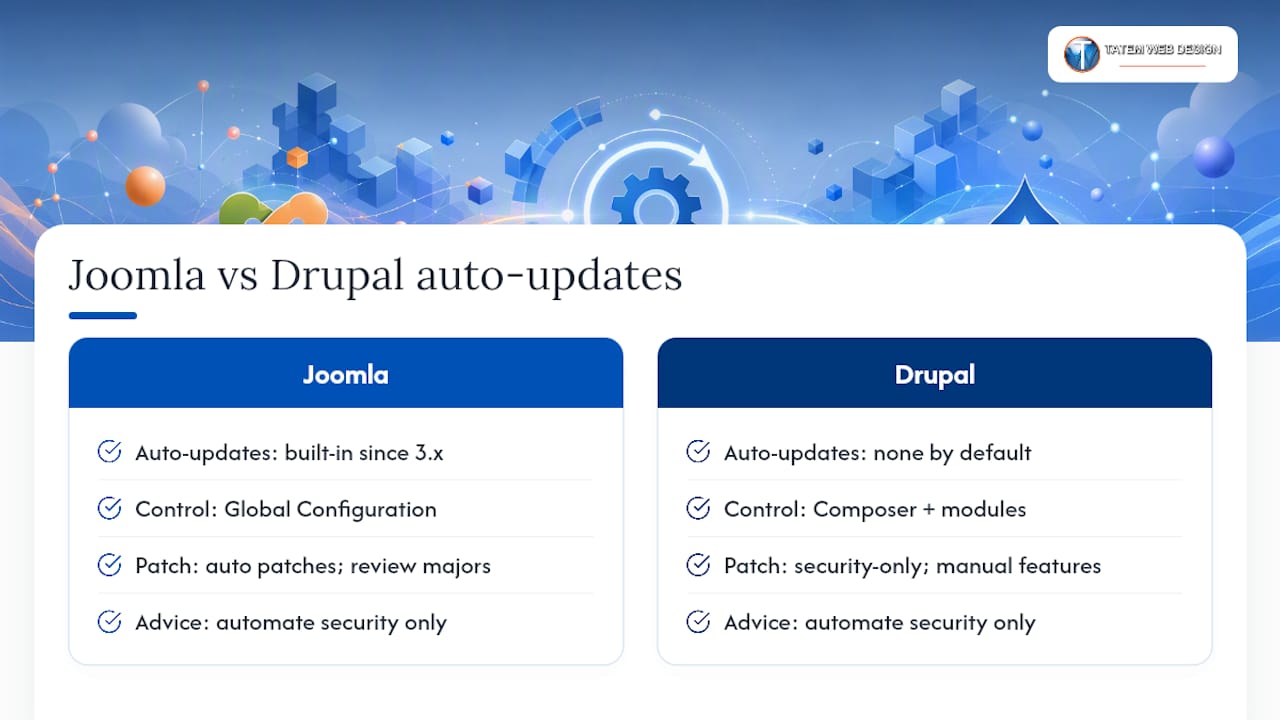
WordPress isn’t the only CMS with automatic update logic, though the controls look different. Joomla has offered native automatic update options since version 3.x, managed through Global Configuration, where administrators can set separate update levels for the core CMS versus installed extensions. Joomla’s update model distinguishes between “patch” releases (auto-safe) and minor or major version jumps, which Joomla explicitly recommends reviewing manually before applying, especially when third-party extensions are involved.
Drupal takes a more conservative default stance. Drupal core doesn’t auto-update out of the box; instead, most Drupal shops rely on Composer to manage core and module versions, often paired with automated security-only update workflows through contributed modules that specifically target Drupal security advisories while leaving feature releases for manual review. Drupal’s security team publishes advisories on a predictable schedule, which many agencies use to trigger a scripted “security patches only” deployment rather than a blanket auto-update.
The underlying principle holds across all three platforms: separate security patches from feature or major-version updates, and only fully automate the former. If your business runs a mixed environment, say a Joomla intranet alongside a WordPress marketing site, applying the same minor-versus-major logic to each platform keeps your policy consistent even though the technical controls differ. For SMBs without in-house Joomla or Drupal expertise, this is often where a managed maintenance provider adds the most value, since tracking security advisories across multiple CMS platforms is easy to let slip.
How Do You Handle Server-Level Auto Updates?
Below the CMS layer sits the server itself, and that’s where an overlooked update can cause the most downtime. Most Linux distributions offer native unattended-upgrade tools, unattended-upgrades on Debian and Ubuntu systems, or dnf-automatic on Red Hat and CentOS-based servers, that can be configured to apply security patches automatically while leaving major distribution upgrades for manual scheduling.
PHP version management deserves particular care. A server that auto-updates its PHP minor version (say 8.2.1 to 8.2.5) is almost always safe, since those are bug and security fixes. A jump between major PHP versions (8.1 to 8.2, or especially 7.x to 8.x) can break plugins or custom code that relies on deprecated functions, so that kind of update belongs in a scheduled, tested maintenance window rather than an automatic overnight push.
Best practices for avoiding downtime at the server level:
- Configure OS-level security patches to apply automatically; leave major version upgrades for a scheduled window
- Pin PHP to a specific minor version and test before bumping major versions
- Schedule server restarts (when required by kernel or service updates) during low-traffic hours
- Keep a documented rollback snapshot of the server image before any major package change
Hosted-site customers on shared or managed hosting typically don’t touch this layer directly. Your host handles OS and PHP patching on your behalf, which is one of the practical advantages of managed hosting over a self-managed VPS for a small business without dedicated server administration staff.
What Should You Test in Staging Before Going Live?

A staging environment is only useful if you actually test the right things in it. The goal isn’t to load the homepage and call it done. It’s to simulate the paths your real visitors and customers take.
Start with a full functional pass: submit every contact form, run a test transaction through checkout if you sell online, and check that login and account pages still work after the update. Then move to a visual pass, comparing key pages before and after the update for layout shifts, broken images, or missing styling, the kind of break that a purely functional test won’t catch but a customer will notice immediately.
Match your staging environment’s PHP version and plugin set to production exactly. A staging test running a newer PHP version than your live server will pass tests that would fail in production, giving you false confidence. Give the update 24 to 48 hours in staging when possible rather than testing and deploying same-day, since some conflicts (particularly caching or cron-related ones) only surface after a full day’s traffic cycle.
Our WordPress security best practices guide covers how to harden a staging environment so it mirrors production closely enough that a passing test actually means something.
What Do People Get Wrong About Auto Updates?
The most common misconception is that “auto update” is all-or-nothing: either your site updates everything automatically, or you’re stuck manually approving every patch. In reality, WordPress and most CMS platforms let you set granular rules, security-only patches auto-enabled, feature releases requiring approval, which most SMBs never configure because they assume it’s one switch.
A second misconception: that enabling auto updates means you no longer need to check on your site. Automatic updates without monitoring create exactly the false sense of security that causes real damage, since you may be getting patched, but you have no visibility into a failure that silently broke a feature.
Third, some site owners believe auto updates will always break something eventually, so they disable updates entirely rather than tuning which categories run automatically. That’s arguably the riskiest posture of all: it trades a small, manageable risk of an update conflict for the certain, growing risk of running known-vulnerable software.
- Myth: auto updates are all-or-nothing → Reality: most platforms allow per-category control
- Myth: enabled updates mean you can stop checking → Reality: monitoring is what makes automation safe
- Myth: disabling updates avoids risk → Reality: it trades a manageable risk for a guaranteed, growing one
- Myth: major updates are just as safe to automate as minor ones → Reality: major releases can change APIs and database structure
Balancing Patch Speed and Stability for Small Businesses
The right default for most small businesses isn’t “automate everything” or “review everything.” It’s a middle path: enable minor and security auto-updates across the board, selectively auto-enable plugins and themes you trust and update frequently, and route anything major through staging first.
Backups and monitoring are the real safety net here, not the decision to disable updates. A site running outdated software because someone was afraid of breaking it is a bigger liability than one running current patches with a solid rollback plan behind it. If tracking update logs, staging tests, and PHP version compatibility across a growing site starts eating more hours than it’s worth, that’s usually the point to bring in professional website maintenance rather than keep patching things ad hoc.
Want a Fully Managed Update Workflow Instead?
Running your own staging, backup, and rollback pipeline works, but it takes ongoing attention most small business owners don’t have hours in the week for. Tatemweb’s managed maintenance approach handles that entire cycle for you: staging clones, visual regression checks, automated backups, monitoring, and rollback, so you get the security benefit of fast patching without the risk of a 2 a.m. surprise on your checkout page.

Our website update and maintenance services cover WordPress, Joomla, and Drupal environments alike, paired with the same AI security enhancements approach we use for compliance-driven clients handling HIPAA and CMMC requirements. If your site runs custom code, WooCommerce, or client-facing forms, a managed update plan with a real testing step behind it is worth more than any single toggle in wp-admin. Call Tatemweb at 772-224-8118, or visit our AI website design page to see how a managed workflow fits your current setup.
Sources
- WordPress documentation: Plugins & themes auto-updates
- class-wp-automatic-updater.php on GitHub (WordPress)
- WordPress Stack Exchange: alter how often WordPress auto-updates plugins
- Cloudways: WordPress Automatic Updates: How to Enable & Manage in 2026
FAQ
What does enabling auto update mean on a website?
It means your CMS, plugins, themes, or server software install new versions automatically on a schedule instead of waiting for manual approval, typically checked twice a day in WordPress.
Is it safe to enable auto updates for all WordPress plugins?
It’s safe for trusted plugins you update frequently, but plugins touching payments, forms, or custom integrations should go through staging first rather than full automation.
What happens if an automatic update fails?
WordPress’s automatic updater attempts a rollback for fatal errors and emails you a notification categorized as success, failure, or mixed, so you know to check the site.
Does disabling auto updates make my site more secure?
No. Disabling updates trades a manageable risk of an occasional update conflict for the certain, growing risk of running software with known, unpatched vulnerabilities.
Can I get help managing updates if I don’t have IT staff?
Yes. Tatemweb offers managed website update services with staging, monitoring, and rollback support for small businesses that want the security benefit without handling it in house.
Recommended
Tatem Web Design
26+ YearsWeb Design & SEO Specialist · Tatem Web Design
Matt Tatem has been designing websites professionally since 1999, making Tatem Web Design one of Florida's longest-running web agencies. Based in Stuart, FL, he specializes in WordPress, local SEO, Shopify e-commerce, and cybersecurity consulting for small businesses.

Rank in ChatGPT in 90 Days With a Practitioner Led Checklist
Follow a practitioner led 90 day plan to get cited by ChatGPT: allow OAI-SearchBot, publish short answer capsules with schema, and track Bing AI Performance.

AI SEO Content Playbook: 16 GEO Signals for Agencies & Teams
A practical playbook mapping the GEO-16 signals to hands-on editorial workflows, review controls, and metrics. For agencies and in-house teams scaling AI...

Copy Ready Local Schema Markup for SMBs + Google Validation
Copy ready JSON-LD examples and Google validation steps for SMBs' local schema markup. Audit, implement, and verify each location page with confidence.