
How to Build a WordPress Website: Beginner’s Guide
Building a WordPress website is defined as the process of selecting hosting, registering a domain, installing WordPress software, and configuring themes and plugins to create a functional site. Anyone can learn how to build a WordPress website by following a clear sequence of steps, with basic setup taking roughly one hour once hosting and a domain are in place. First-year costs typically run between $100 and $500, making WordPress one of the most accessible platforms for small business owners and individuals alike. This guide walks you through every stage, from platform selection to launch, with practical tips that save time and prevent costly mistakes.
How to build a WordPress website: choosing the right platform first
The single most important decision you make before building your site is choosing between WordPress.com and WordPress.org. Getting this wrong leads to expensive migrations and lost customization options down the road.
WordPress.com is a hosted platform that manages your server, backups, and security automatically. The trade-off is limited control. You cannot install arbitrary plugins on lower-tier plans, and your branding options are restricted unless you pay for premium upgrades. WordPress.org, by contrast, is free software you install on your own hosting account. You control everything: themes, plugins, code, and data.

| Feature | WordPress.com | WordPress.org |
|---|---|---|
| Hosting included | Yes | No, you purchase separately |
| Plugin access | Limited by plan | Unlimited |
| Cost to start | Free to $45+/month | $3–$10/month hosting |
| Customization | Restricted | Full control |
| Best for | Personal blogs, simple sites | Business sites, growth-focused |
For any small business owner or professional, WordPress.org is the right choice. Choosing WordPress.org from the start prevents the costly, time-consuming migrations that happen when you outgrow a hosted platform. WordPress.com’s simplicity is appealing, but it lacks the plugin flexibility and advanced functionality that a growing business website requires.
Common pitfalls to avoid:
- Signing up for WordPress.com when you intended WordPress.org, a mistake that confuses many beginners and causes redesign headaches
- Assuming the free WordPress.com plan is sufficient for a professional business site
- Upgrading WordPress.com plans repeatedly instead of migrating to self-hosted from the start
What tools and services do you need to create a WordPress site?
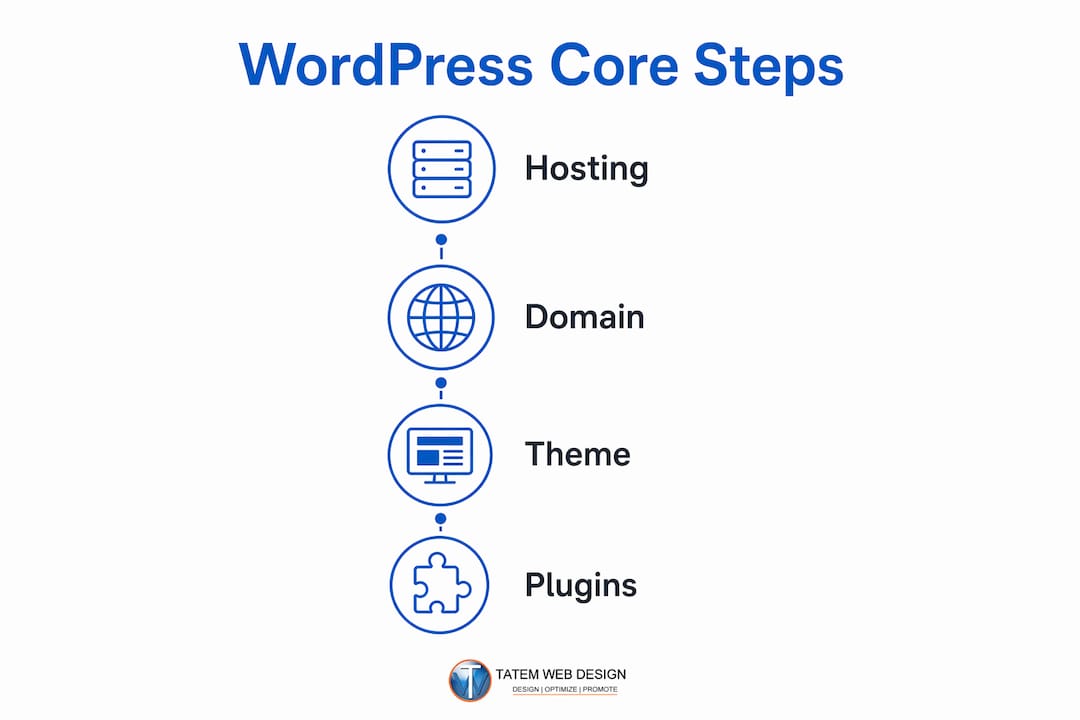
Every WordPress website requires four core components: hosting, a domain name, a theme, and plugins. Understanding each one before you spend money prevents surprises.
Hosting options and what they cost
Hosting types vary significantly in performance and price. Shared hosting runs $3–$8 per month and works well for new sites with low traffic. Managed WordPress hosting costs $25–$100 per month and includes automated backups, security monitoring, and performance tuning. VPS hosting suits advanced users who need dedicated server resources. For most small business owners, managed hosting is the practical choice because it handles the technical work and lets you focus on content and growth.
Domain names, themes, and plugins
Domain names cost approximately $10–$15 per year for common extensions like .com or .net. Always check the renewal price before registering, because some registrars offer low first-year rates that jump significantly on renewal. Specialty extensions like .io or .co cost more.
Themes control your site’s visual design. Free themes from the official WordPress.org repository are a solid starting point. Premium themes from reputable marketplaces typically cost $40–$100 as a one-time purchase and offer more design options and dedicated support. For tailored results, read the guide on customizing WordPress themes to avoid common design mistakes.
Plugins extend your site’s functionality. Every business site needs at minimum:
- Security: A plugin that blocks malicious login attempts and scans for malware
- SEO: A plugin that manages meta titles, descriptions, and XML sitemaps
- Caching: A plugin that speeds up page load times by storing static versions of pages
- Backups: A plugin that schedules automatic backups to cloud storage
| Tool | Typical Cost | Purpose |
|---|---|---|
| Shared hosting | $3–$8/month | Stores your website files |
| Managed hosting | $25–$100/month | Hosting with automated maintenance |
| Domain name | $10–$15/year | Your website address |
| Premium theme | $40–$100 one-time | Visual design and layout |
| Security plugin | Free to $99/year | Protects against threats |
| SEO plugin | Free to $99/year | Improves search visibility |
Pro Tip: Register your domain with a separate registrar from your hosting provider. This gives you full control over your domain if you ever switch hosts.
Step-by-step process to set up WordPress and launch your site
This is the core of any WordPress website tutorial. Follow these steps in order and you will have a working site ready for content within a few hours.
Step 1: Sign up for hosting and register your domain
Choose a hosting provider that offers one-click WordPress installation. Most reputable managed and shared hosts include this feature. During signup, you can register a domain directly through the host or connect one you registered elsewhere. Complete your account setup and note your login credentials.
Estimated time: 15–20 minutes.
Step 2: Install WordPress with one click
One-click installers are available in the control panel of virtually every major hosting provider. Look for a “WordPress” option in your hosting dashboard, click install, select your domain, and set your admin username and password. The installer handles all file transfers and database configuration automatically.
Estimated time: 5 minutes.
Step 3: Log into your WordPress dashboard
After installation, access your site’s control center at yourdomain.com/wp-admin. Enter the admin credentials you created during installation. The dashboard is your command center. The left sidebar contains menus for Posts, Pages, Appearance, Plugins, and Settings. Spend five minutes clicking through each menu to get familiar with the layout before making changes.
Estimated time: 10 minutes to explore.
Step 4: Install and customize your theme
Go to Appearance > Themes > Add New in the dashboard. Search for a theme by name or filter by feature. Click “Install,” then “Activate.” Most modern themes include a built-in customizer accessible at Appearance > Customize, where you can change colors, fonts, header images, and layout options in real time. For business sites, choose a theme built for your industry, such as a professional services or portfolio theme.
Pro Tip: Preview a theme on a demo site before activating it on your live site. Many premium theme providers offer live demos so you can see exactly how your content will look.
Estimated time: 30–60 minutes for initial customization.
Step 5: Install your essential plugins
Go to Plugins > Add New and search for each plugin by name. Install and activate your security, SEO, caching, and backup plugins one at a time. Configure each plugin’s basic settings immediately after activation. Installing too many plugins or poorly coded ones slows your site and causes conflicts, so keep your plugin list focused on genuine needs. The WordPress plugin essentials guide covers the specific settings worth configuring for each category.
Estimated time: 30–45 minutes.
Step 6: Create your essential pages
Every business website needs at minimum three pages: Home, About, and Contact. Go to Pages > Add New, enter your page title, add your content using the block editor, and click “Publish.” The block editor uses a drag-and-drop system where you add paragraphs, images, buttons, and columns as individual blocks. Write clear, direct copy on each page. Your Home page should state what you do and who you serve within the first two sentences.
Estimated time: 60–90 minutes for three pages.
Step 7: Set up your navigation menu
Go to Appearance > Menus. Create a new menu, add your pages to it, and assign it to the “Primary Menu” location. Drag and drop pages to reorder them. A clean navigation menu with five items or fewer performs better than a cluttered one. Save the menu and preview your site to confirm everything displays correctly.
Estimated time: 10–15 minutes.
For a more detailed walkthrough tailored to small businesses, the WordPress setup guide for small business owners covers additional configuration steps specific to service-based sites.
What mistakes should you avoid when building a WordPress website?
Beginners consistently repeat the same errors. Knowing them in advance saves hours of frustration.
- Choosing the wrong platform. Picking WordPress.com when you need WordPress.org is the most common and costly mistake. Understanding the differences early prevents redesign and migration headaches that can cost hundreds of dollars.
- Buying cheap hosting with hidden renewal costs. A $1-per-month introductory rate often jumps to $15 or more at renewal. Read the renewal pricing before you commit.
- Overloading plugins. Every plugin adds code that runs on every page load. More than 20 active plugins on a basic shared hosting plan will noticeably slow your site.
- Skipping backups from day one. A site without backups is one server failure or hack away from total loss. Set up automated backups before you publish any content.
- Using the default “admin” username. This is the first username attackers try. Change it during WordPress installation.
“The biggest time-wasters in WordPress are almost always self-inflicted: wrong platform choice, no backups, and too many plugins. Fix those three things and you eliminate 80% of the problems beginners face.”
Troubleshooting common issues is straightforward once you know where to look. Login problems are usually caused by incorrect credentials or a security plugin blocking your IP address. Theme conflicts appear when you activate a new theme without testing it first. Plugin errors show up in the dashboard as white screens or error messages, and deactivating plugins one at a time identifies the culprit quickly.
How do you keep a WordPress website secure and maintained?
A WordPress site requires ongoing attention after launch. Security and maintenance are not optional extras. They are the foundation of a site that stays online and performs well.
Regular backups, timely updates, and security measures are the three pillars of a healthy WordPress site. Managed hosting automates many of these tasks, which is why it suits most small business owners better than shared hosting.
Core maintenance tasks every site owner should perform:
- Update WordPress core, themes, and plugins at least once per week. Outdated software is the leading cause of WordPress site hacks.
- Run automated backups daily for active sites, weekly for low-traffic sites. Store backups off-site in cloud storage like Google Drive or Amazon S3.
- Monitor uptime with a free tool that alerts you by email or text if your site goes offline.
- Scan for malware monthly using your security plugin’s built-in scanner.
- Check site speed using Google PageSpeed Insights after any major update. A score below 70 signals a performance problem worth fixing.
Managed WordPress hosting in 2026 handles security patches and backups automatically, freeing business owners from server-side troubleshooting. This shift is significant for small businesses that cannot afford dedicated IT staff.
Pro Tip: Set a recurring calendar reminder every month to review your plugin list. Remove any plugin you are not actively using. Inactive plugins still run code and create security vulnerabilities.
For a complete checklist covering every maintenance task by frequency, the WordPress maintenance checklist from Tatemweb breaks down daily, weekly, and monthly tasks in plain language.
Key Takeaways
Building a WordPress website requires WordPress.org on self-hosted managed hosting, with themes, essential plugins, and core pages configured before launch to avoid costly mistakes and security gaps.
| Point | Details |
|---|---|
| Choose WordPress.org | Self-hosted WordPress gives full control over plugins, design, and growth. |
| Pick managed hosting | Managed hosting handles backups and security, saving time for non-technical owners. |
| Limit your plugins | Install only security, SEO, caching, and backup plugins to keep your site fast. |
| Build core pages first | Create Home, About, and Contact pages before adding any other content. |
| Maintain consistently | Update themes, plugins, and WordPress core weekly to prevent security breaches. |
Why most beginners make this harder than it needs to be
Working with small business owners on WordPress sites for years teaches you one consistent lesson: most people overcomplicate the starting point. They spend weeks researching the “perfect” theme instead of publishing their first page. They install 30 plugins before they have written a single word of content. They agonize over platform choice instead of just picking WordPress.org and moving forward.
The truth is that a basic WordPress site with a clean theme, three well-written pages, and four essential plugins outperforms a bloated site with 50 plugins and a premium theme that was never properly configured. Simplicity wins at the start.
What I have seen work consistently is this: commit to WordPress.org, choose managed hosting, pick a theme that matches your industry, and write honest content about what you do and who you serve. That combination gets a site indexed, found, and converting faster than any technical shortcut.
The other thing beginners underestimate is the value of learning the dashboard before customizing it. Spend 30 minutes clicking through every menu before you change a single setting. You will make fewer mistakes and understand why things work the way they do. That knowledge pays off every time something breaks, and something always breaks eventually.
WordPress is not fragile. It is forgiving. The mistakes you make early are almost always reversible. The only truly costly mistake is choosing the wrong platform at the start, which is why this guide leads with that decision.
— Matt
Professional WordPress and AI web design from Tatemweb
Building your own WordPress site is achievable, and this guide gives you the foundation. When you need a site built faster, built better, or built with AI-powered features that go beyond a standard DIY setup, Tatemweb delivers.
Tatemweb is a full-service digital agency based in Stuart, Florida, with over 26 years of experience building WordPress sites for small businesses, healthcare providers, legal professionals, and more. The team specializes in AI-powered website design that combines fast deployment with built-in SEO, security, and lead capture tools. Whether you want a professionally built WordPress site or a fully custom AI website, Tatemweb builds it right the first time. Call 772-224-8118 to schedule a consultation.
FAQ
What is the difference between WordPress.com and WordPress.org?
WordPress.com is a hosted service that manages your server for you but limits plugin access and customization. WordPress.org is free software you install on your own hosting account, giving you full control over your site.
How long does it take to build a WordPress website?
Basic setup takes approximately one hour once you have chosen hosting and a domain. Adding content, customizing your theme, and configuring plugins typically adds another two to four hours for a simple business site.
How much does a WordPress website cost in the first year?
First-year costs typically range from $100 to $500, covering shared or managed hosting, a domain name at $10–$15 per year, and optional premium themes or plugins.
How many plugins should a beginner install?
Start with four plugin categories: security, SEO, caching, and backups. Keep your total active plugin count as low as possible, since too many plugins slow your site and create conflicts.
Do I need to know how to code to build a WordPress site?
No coding knowledge is required to build a standard WordPress website. The block editor, theme customizer, and plugin settings handle most tasks through visual interfaces without touching any code.
Recommended
Tatem Web Design
26+ YearsWeb Design & SEO Specialist · Tatem Web Design
Matt Tatem has been designing websites professionally since 1999, making Tatem Web Design one of Florida's longest-running web agencies. Based in Stuart, FL, he specializes in WordPress, local SEO, Shopify e-commerce, and cybersecurity consulting for small businesses.

Rank in ChatGPT in 90 Days With a Practitioner Led Checklist
Follow a practitioner led 90 day plan to get cited by ChatGPT: allow OAI-SearchBot, publish short answer capsules with schema, and track Bing AI Performance.

AI SEO Content Playbook: 16 GEO Signals for Agencies & Teams
A practical playbook mapping the GEO-16 signals to hands-on editorial workflows, review controls, and metrics. For agencies and in-house teams scaling AI...

Copy Ready Local Schema Markup for SMBs + Google Validation
Copy ready JSON-LD examples and Google validation steps for SMBs' local schema markup. Audit, implement, and verify each location page with confidence.